

Managed account asset-transfer pending trade updates
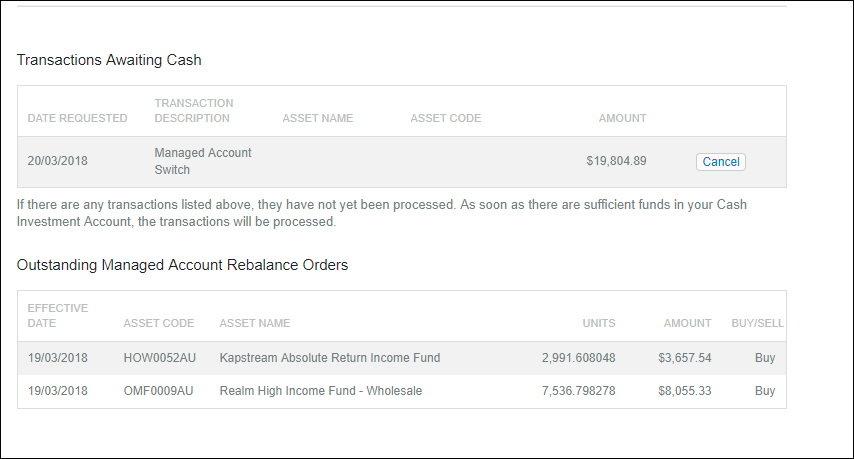
When a client's managed account rebalances, you are now able to view the managed account trades that have activated and are outstanding for settlement by visiting Client details>Transactions>Pending. Previously only a generic message informing of a pending trade was displayed.
For clients who have switched in just cash, all trades will be displayed. For clients who have contributed a mix of assets, the trades displayed will be the first sales of overweight holdings and purchases from the available managed account cash. A second wave of purchases will display once the required sale proceeds are available.
Additional control over managed account minimum trade sizes
We have added the ability to set minimum trade sizes by the percentage of total dollars invested in that managed account. This is in addition to being able to set a minimum trade size by a dollar amount.
The purpose of this feature is to assist in managing the the number of small trades that may occur as the account grows, thereby potentially saving you time.
To set a minimum trade percent select the client then navigate to Client details>Investment preferences and enter the percentage desired in the Minimum trade percent box.
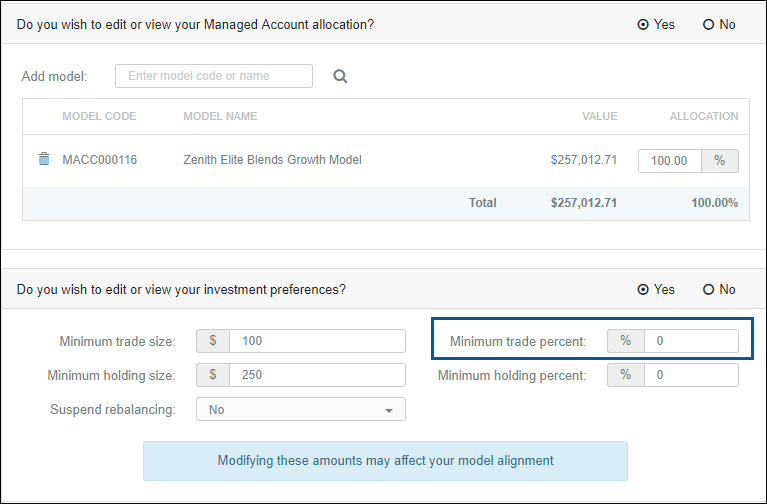
The rebalance process calculates which of the two Minimum trade size settings produces the higher value, then uses that value to determine if the rebalance process will find a trade to send to market.
For example, if a client has a managed account value of $257,000 and you set the minimum trade size to $100 and minimum trade percent to 0.10% then the new minimum trade amount will be $257,000 x 0.10% = $257.
Transfer cash and any assets into a managed account for your clients online via the managed account transfer tool.
Advisers who recommend any of our managed accounts to their clients now have a number of online tools to manage the move into a Managed Account.
The Managed Account Planner tool enables you to model the outcome of transferring existing platform account assets into the managed account model(s) of your choosing. It lists the trades that would result from transferring the selected assets into the managed account and rebalancing to the selected model asset allocation.
This allows you to evaluate the expected trades and assess the associated transaction costs of transferring assets into the managed account.
The Managed Account Transfer tool allows advisers to transfer assets and cash from the platform into one or more existing and/or new managed account model(s).
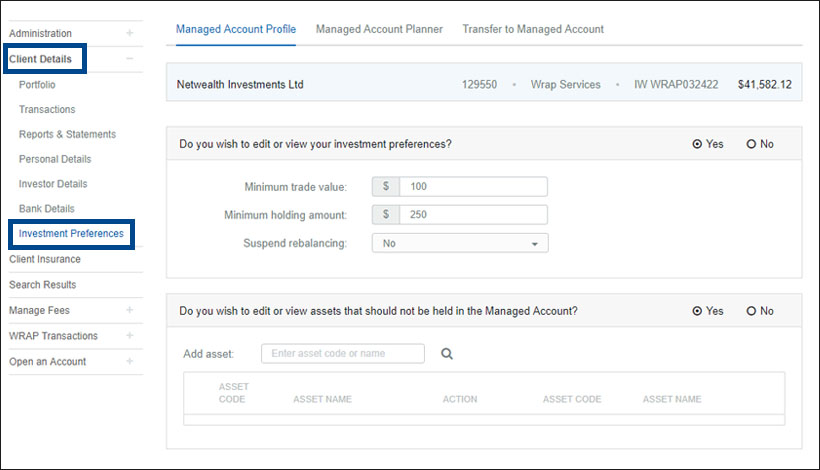
To access these tools, navigate to: Client > Client Details > Investment Preferences, where you will now find three tabs.
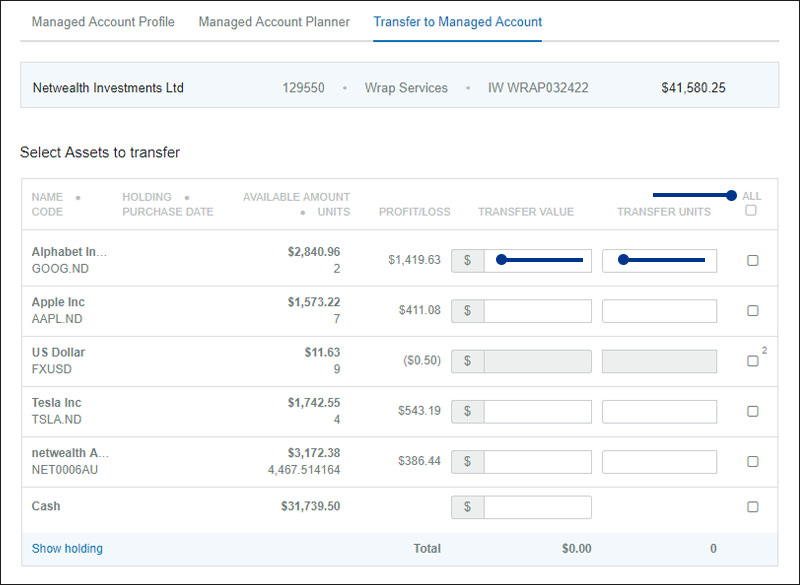
Assets can be transferred online by following these steps:
1. Click the Transfer to Managed Account tab and choose to transfer a dollar amount or unit amount per asset.
- To transfer all units and cash select the 'ALL' check box at the top right of the page
- To select individual tax parcels to transfer use the 'Show Holding' link at the bottom left of the page.
- Any assets that are not compatible with the managed account will not be available for selection on the page and will be greyed-out (these can be sold prior to transfer/left outside the managed account).
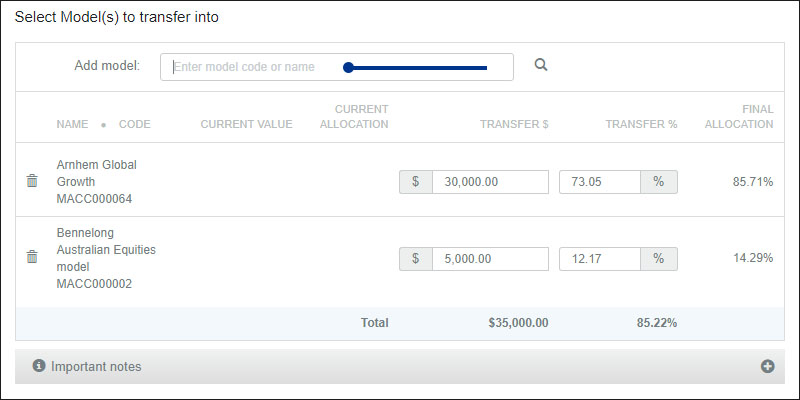
2. Choose the relevant model/s and enter the amount you would like invested in each, either by dollar amount, or investment percentage of the assets being transferred. Note that this area is constrained by the dealer APL and model investment minimums apply:
3. Once complete press the Submit button and a summary screen will appear.
4. After you have reviewed the summary, press Confirm.
Your request is then sent to Netwealth who will include it in the next available rebalance.
Online asset transfer tool
Our online managed account asset planner and transfer tool gives you the flexibility to model the impact of a potential asset transfer, and facilitate the transfer in or out of the managed account.
This month we extended this functionality to allow you to transfer assets and/or cash out of some or all of your managed account model portfolios and into your Netwealth platform, without the need for any signed paperwork.
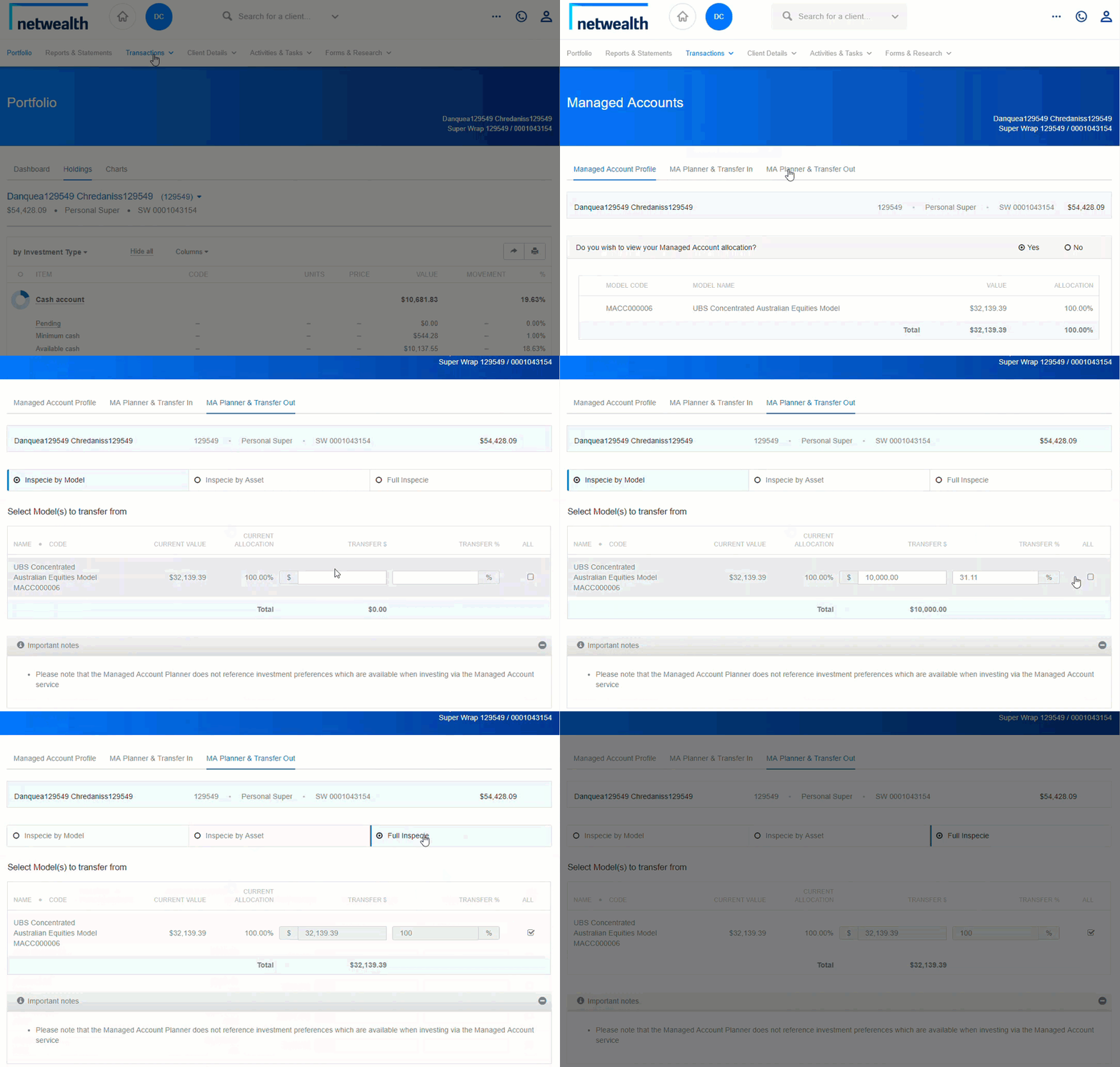
Once you have logged in, simply:
Step 1: Select Transactions > Managed Account > MA Planner and the Transfer Out tab
Step 2: Select from one of 3 options to model and transfer assets out:
a. In specie by model - This option is most useful if you have invested your client in two or more managed models and would like to only transfer all assets out of one managed model.
b. In specie by assets - This option is most useful if you have a specific asset or some assets that you would like to transfer out, regardless of what managed account model they belong to. Consider adding investment preferences such as a 'don't buy' to assets that have been transferred out so that these assets are not purchased in the model again.
c. Full in specie - This option provides an efficient way of sweeping all assets out of the entire managed account
Step 3: You are then able to select 'evaluate plan' which will outline the approximate trading impact of moving the assets out so that you can make an informed decision on whether or not to proceed. Please note, this plan does not take into consideration any managed account investment preferences that may have been set.
Step 4: If you are happy with the outcome of this plan, select 'execute transfer'. Your request will be queued for our team to review before being transferred out into your Netwealth account. If you only did a partial transfer, your remaining assets will without action by you, rebalance.
Scenario plan the trading impact to a client when transitioning into a managed account
You now have a new tool to assess the holdings that would be kept, sold or added if an asset or portfolio of assets were to be transferred into a managed account.
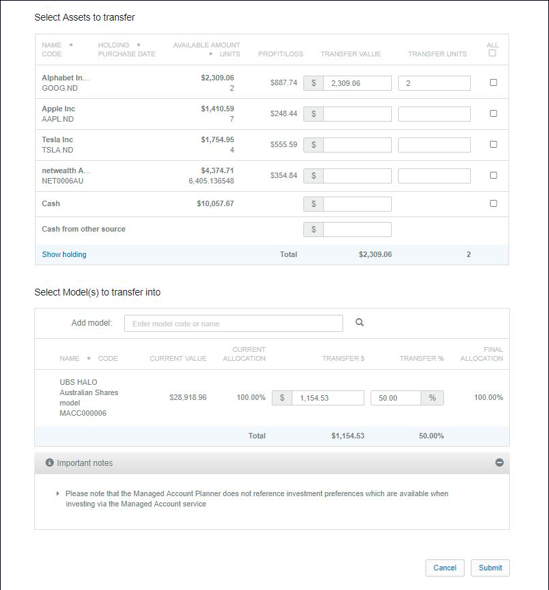
Navigate to Client Details > Investment Preferences > Managed Account Planner then complete the following steps:
- Select the asset/s you wish to transfer. You may select; one platform asset, all a client’s platform assets, or some specific parcels. Any combination that suits your client’s objectives, provided it is easily and quickly convertible to cash
- Select the amount of cash you will add to the nominated assets/parcels. If you are expecting cash to come into the account at a later date, you can use ‘cash from another source’ to model the inclusion of this future inflow
- Select the Managed Account model/s you plan to invest in.
An excel spreadsheet will be generated displaying the current model asset allocations and based on those allocations what would be retained, sold and bought based on the scenario. When you have found a solution for your client you can move onto the Transfer to Managed Account page, specify the assets and cash to be transferred, and we will manage the release and rebalance on your behalf.
The Managed Account Planner scenario spreadsheet output has had a makeover so it may help you better understand the rebalance trade outcomes we are anticipating. The spreadsheet includes:
- If a trade is expected, its direction; sale or purchase
- The combination of any assets already held in the managed account, being transferred into the managed account and would be bought
- The reference allocation as a percentage of the managed account investment
- Estimated final position in each asset when rebalance trades have completed
- Trades required to match the reference allocation

Managed accounts are now available in SMART
You can now include approved managed accounts to new or existing SMART model portfolios. The addition of managed accounts within Netwealth SMART gives you and your clients access to professionally managed investments, which can save you from selecting and managing individual assets within your SMART model. To add managed accounts:
Navigate to SMART>Models and find the model you wish to add.
Important: Please note that the client must have approved the use of managed accounts within their portfolio to utilise managed accounts in SMART. You can check which of your clients have authorised managed accounts by navigating to My Reports>Adviser Reports>Managed Account Profiles. To check individual clients select their account and navigate to Client Details>Managed Account, if the below message appears they are not approved. 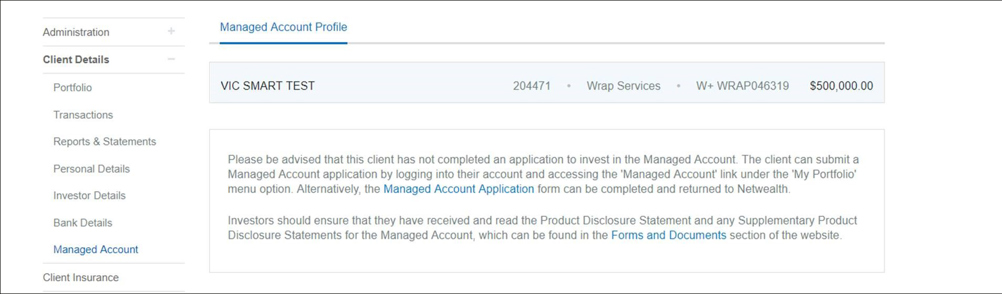
Read how you can also take advantage of our automated ROA functionality when you rebalance client portfolios within SMART.
Bulk trade managed funds, term deposits and managed accounts
You can now react quickly to time critical market events by buying or selling a managed fund across multiple clients in a few easy steps.
- Simply type in the name or code of the asset you wish to trade
- Select clients using advanced search filters
- Input the order details
- Submit the order
This functionality has the potential to save you hours as you no longer need to go into each individual client's Netwealth account to update their portfolio, particularly when needing to make a change as quickly as possible due to market activity.
Below are detailed instructions on how to conduct bulk managed funds trading.
Step 1: Choose the asset
Navigate to Bulk Trading > Managed Funds and simply choose the managed fund you wish to purchase or sell on behalf of your clients by typing the fund code in the Select Asset text box.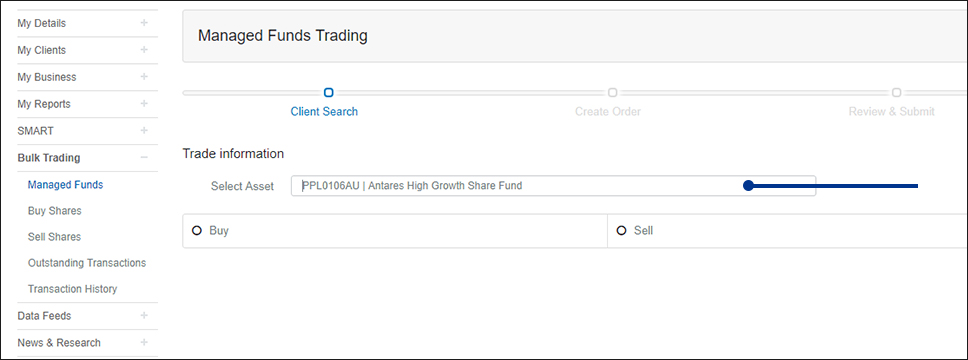
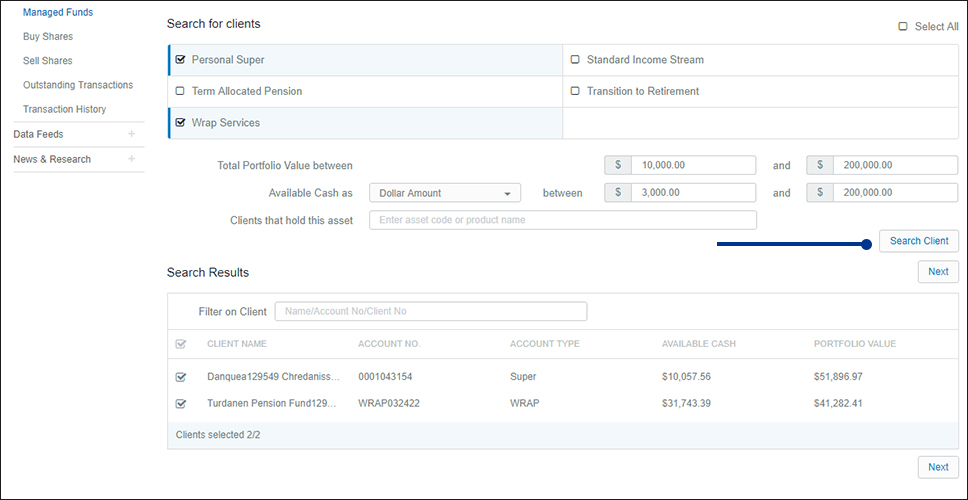
When the relevant filters have been populated click Search Client to see the clients that meet your parameters. In the client list that appears, choose which clients you'd like to purchase/sell a managed fund for by ticking the box to the left of their name, and click Next.
Step 3: Input order instructions
You can either:
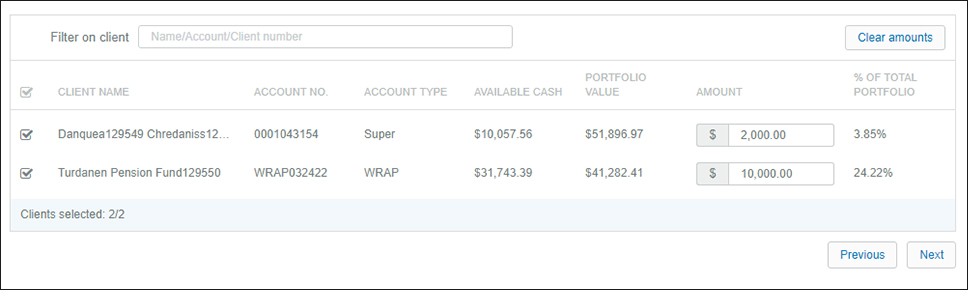
(a) manually enter the amount of money you would like each client to invest into the managed fund
OR
(b) use the Order Instructions filter to determine how much of a client's Available Cash or Total Portfolio balance should be invested into the managed fund, and the minimum and maximum amount of available cash they must have in order to invest. This could be a valuable, time-saving feature to use if you have a large group of clients investing into the fund.
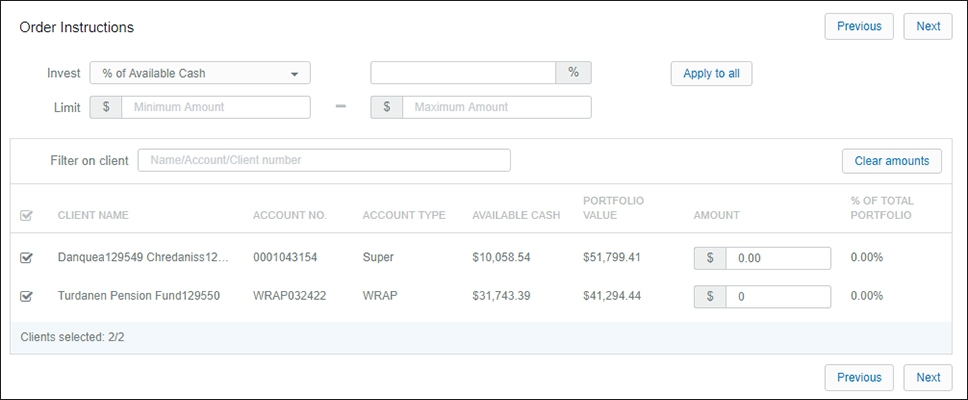
How to use the Order Instructions filter:
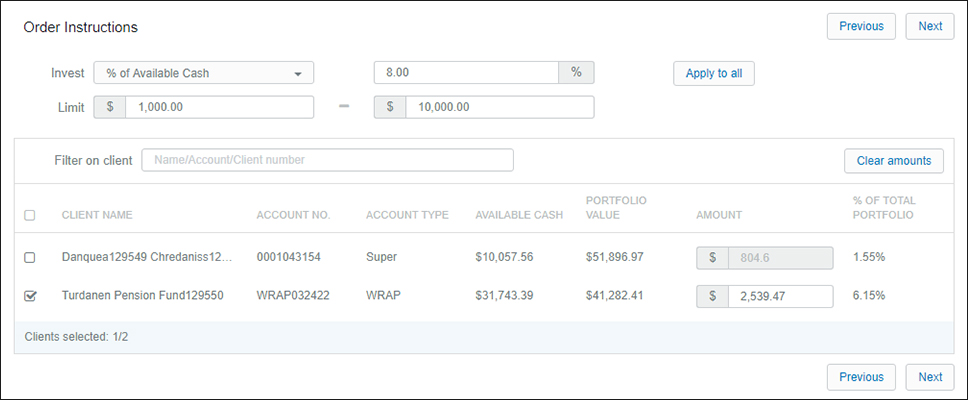
Once you populate the filter parameters and click Apply to all, the clients that meet your order instructions will be ticked, and those who do not will be unticked and greyed out.
Note:
(i) You have the added flexibility to overwrite the amount a client can invest in by clicking into the Amount text box.
(ii) You are able to tick a client who was unticked in order to add them to the managed fund order should you want to overwrite the order instructions for this client.
Step 4: Submit the order
Finally, when you click Next the system automatically validates your translation.
If a client doesn't have enough cash in their portfolio or if investing in the managed fund exceeds the super restrictions, you will be notified prior to the transaction being processed, allowing you to amend the investment amount for the client/s prior to submitting the order.